
How to Track Cash and Paper Receipts on Your iPhone
Track cash spending and scan paper receipts on your iPhone. Learn a simple offline routine with on-device scanning and free CSV export in Spendimo.
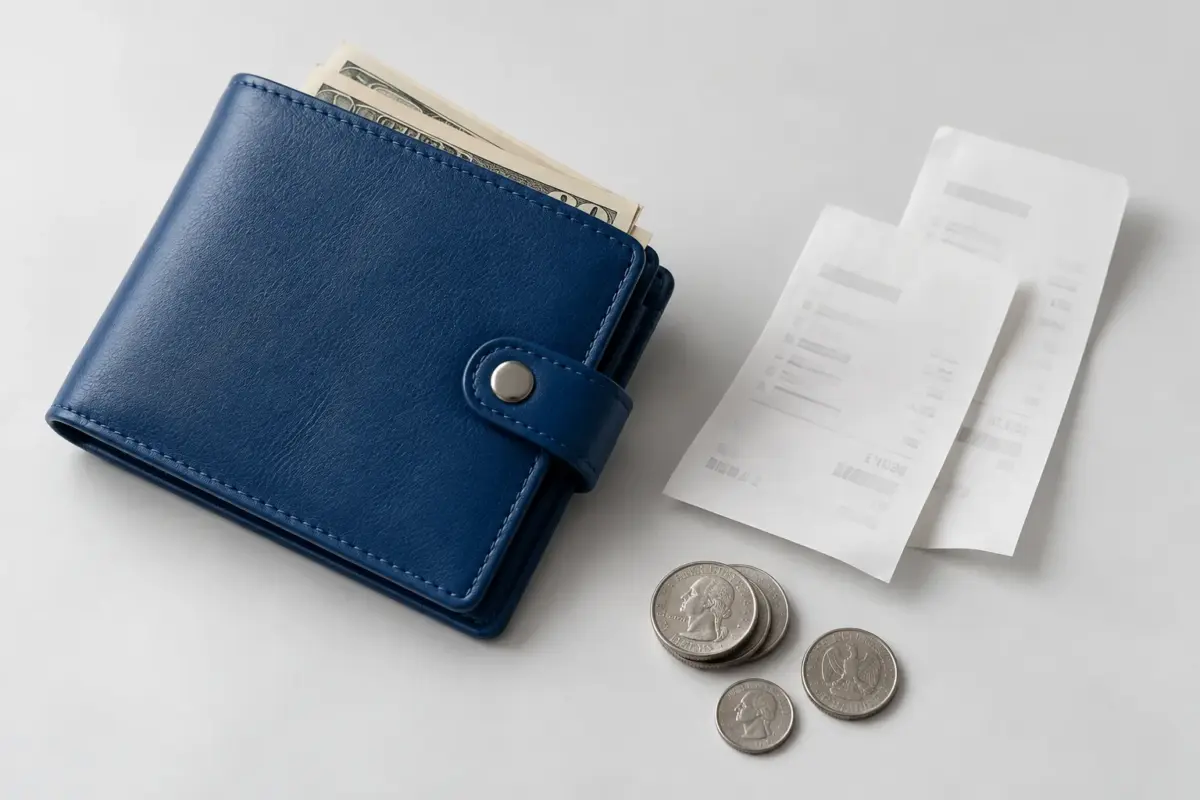
As personal finance tools increasingly rely on automatic bank connections, tracking physical cash and paper receipts has become an afterthought. A bank feed cannot show how you spend cash after withdrawing it. If you withdraw cash from an ATM, your app simply records a “Cash Withdrawal”—losing all visibility into whether that money was actually spent on groceries, a taxi, or a tip.
If you prefer using cash for budgeting or privacy reasons, you need a system designed specifically for manual entry and physical receipts. Here is how to build a reliable tracking habit on your iPhone without linking your bank accounts.
1. Log Cash Expenses Immediately
The biggest challenge with cash is memory. Unlike card purchases, there is no digital trail to review later. The solution is to log the expense the moment you receive your change.
- Keep it simple: Record the exact total, including cents, before you forget it. Keep categories simple initially.
- Use a fast mobile tracker: You need an app that is quick to open and allows you to enter an amount in seconds.
- Skip the spreadsheets on mobile: While spreadsheets are excellent for monthly reviews on a laptop, opening and formatting a mobile spreadsheet at a checkout counter can interrupt daily logging habits.
2. Scan Paper Receipts Locally
Typing the details from each grocery receipt is tedious. Fortunately, modern iPhones can read text from images directly.
Instead of manually typing the merchant, date, and total, you can use a receipt scanner. Some scanners process receipts in the cloud. Check how a service handles your receipt data before using it. To protect your financial privacy, look for an expense tracker that performs optical character recognition (OCR) entirely on your device, rather than in the cloud.
3. Do a Weekly Review and Export
Once you have captured your daily cash spending and scanned your receipts, set aside five minutes a week to review your totals.
- Check category trends: See how much of your cash went toward food, transport, or entertainment to adjust your withdrawal habits.
- Export your data: If you use a master household spreadsheet on your computer, export your week’s mobile entries to a CSV file. This gives you the speed of a mobile app with the permanent data ownership of a spreadsheet.
Tracking Cash with Spendimo
If you are looking for a privacy-first tool to manage this workflow, Spendimo is designed specifically for iPhone and iPad users who prefer not to connect their bank accounts.
- Fast manual entry: For familiar purchases, Spendimo suggests details from previous entries so you can save an expense without starting from scratch.
- On-device receipt scanning: Spendimo’s receipt scanner uses Apple’s Vision framework to read the merchant, date, and total directly on your device. Because this processing happens locally, you can scan receipts even when you are offline. Review and correct the recognized details before saving.
- Free everyday tracking: Unlimited expense and income entries and full CSV exports are included for free. You can also scan receipts one at a time for free. You do not need an account or a bank connection for everyday tracking.
By relying on your iPhone’s built-in capabilities rather than third-party bank aggregators, you can maintain a clear picture of your cash spending while keeping your data entirely in your control.
Download Spendimo on the App Store to start scanning receipts and tracking cash today. Requires iOS 26 or iPadOS 26 or later.